WordPress admin can be slow for a dozen different reasons. In my experience the hosting is rarely the cause, even though it is usually blamed first.
This guide covers all the common causes, in diagnostic order. Work through them with evidence before changing anything. The interactive WordPress Performance Checklist tracks your progress.
Before you start: measure the actual delay
Open browser DevTools, go to the Network tab, reload a slow admin page with the cache cleared, and identify where the time is going:
- Slow initial HTML response: the bottleneck is server-side (PHP, database queries, outbound HTTP calls from plugins, or object cache misses).
- Fast initial response, slow page after: the bottleneck is client-side (JavaScript, AJAX calls to
admin-ajax.php, REST API requests). - Slow on some admin pages but not others: a specific plugin or page builder is responsible.
Note the response time of the main document request. That number tells you whether this is a server problem or a browser problem. Most of the admin slowness I have measured was server-side, in PHP, plugins, and the database.
Install Query Monitor before doing anything else
Query Monitor is the single most useful tool for this investigation. Install it temporarily, reload the slow page, and look at:
- Database Queries: total count, total time, and any individual queries over 0.05s
- HTTP API Calls: every outbound HTTP request made during the page load
- Hooks & Actions: which plugins are adding processing time
- PHP Errors: errors that slow execution silently
Disable Query Monitor after the investigation. Do not run it permanently on production.
Cause 1: Plugin outbound HTTP calls
On the sites I have diagnosed, this is the most common cause of severe admin slowness, and the least obvious. Plugins fire outbound HTTP calls for license verification, update checks, analytics pings, and API lookups. If those calls are not cached or are slow to respond, they block every admin request they run on.
How to identify it: Query Monitor's HTTP API Calls panel. If you see the same vendor endpoints appearing repeatedly, or if a single plugin accounts for the majority of calls, you have found the cause.
Real case study: Modern Events Calendar (MEC)
On a production site, every admin page took over 16 seconds to load while server load and PHP-FPM remained completely healthy with no slow MySQL queries. Query Monitor's HTTP API panel immediately isolated the cause: Modern Events Calendar (MEC) by Webnus generated 28 out of 31 outbound HTTP calls (over 90%) and contributed 16 seconds of latency on every request:
- 28 out of 31 HTTP calls on every admin page load
- 16 seconds of added delay, traversing remote network hops
- Uncached calls hitting remote Webnus endpoints on every admin screen:
http://webnus.biz/webnus.net/plugin-api/verifyhttp://webnus.biz/webnus.net/addons-api/verify
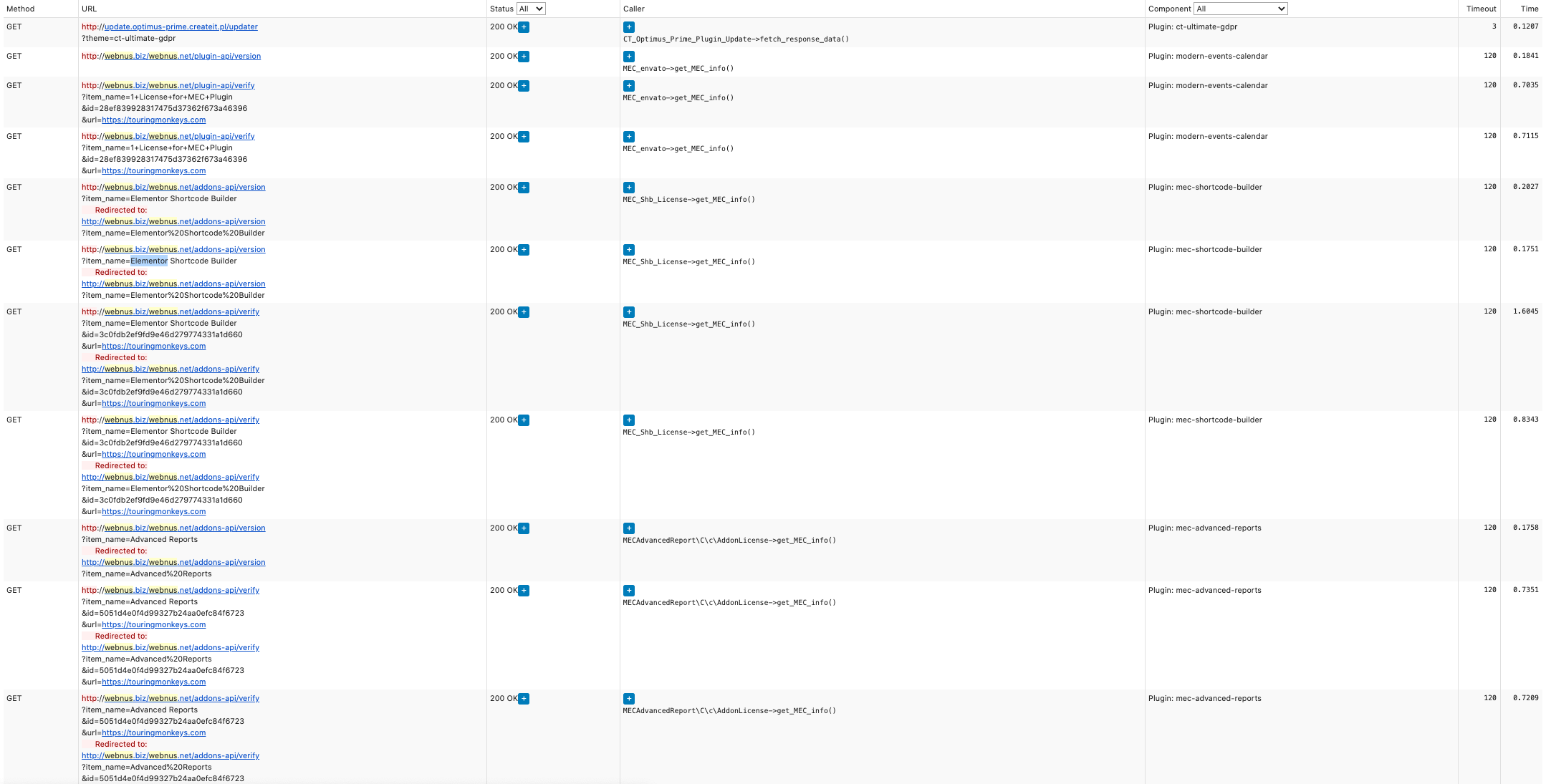
Because license verification had already completed successfully, outbound traffic to these endpoints was blocked at the host level using iptables without touching plugin files (see Block outgoing URL calls with iptables on Linux). Admin load time immediately dropped from 16+ seconds to under 1 second with zero loss of plugin functionality. The case study on outbound plugin calls has the full Query Monitor trace and packet breakdown.
How to fix it:
- Contact the plugin vendor and ask them to cache their verification calls.
- If you need an immediate fix without touching plugin code, use WordPress's own constant in
wp-config.phpto block external HTTP calls:
define( 'WP_HTTP_BLOCK_EXTERNAL', true );
define( 'WP_ACCESSIBLE_HOSTS', 'api.wordpress.org' ); // allow WP core update checks
Start here: it needs no server access and can be reverted in seconds. Add any other hosts your site legitimately needs to WP_ACCESSIBLE_HOSTS as a comma-separated list. Note that on complex estates with payment gateways, transactional mail, or external APIs, you must audit all background integrations before enabling a global block, or use surgical host-level filtering.
- If you need host-level blocking (for example, the plugin bypasses WordPress's HTTP API), see Block outgoing URL calls with iptables.
- If the plugin cannot be fixed and neither approach is appropriate, evaluate an alternative plugin.
Cause 2: WordPress Heartbeat API
The Heartbeat API keeps WordPress admin pages alive: it handles post locking, autosaves, dashboard widget refreshes, and session management. By default it fires an admin-ajax.php request every 15 seconds in the post editor and every 60 seconds on other admin screens.
With multiple open admin tabs, or with plugins that hook into Heartbeat for additional functionality, the frequency can create a background load that compounds with other problems.
How to identify it: In the Network tab, watch for repeated admin-ajax.php POST requests firing at regular intervals. In Query Monitor, look for heartbeat in the AJAX action column.
How to fix it:
Use a plugin like Heartbeat Control, or add this to your theme's functions.php or a site-specific plugin:
add_filter( 'heartbeat_settings', function( $settings ) {
    $settings['interval'] = 60; // seconds - 15s in post editor, 60s elsewhere by default
    return $settings;
} );
To disable Heartbeat entirely on specific screens (post editor excluded, since autosave depends on it):
add_action( 'admin_enqueue_scripts', function() {
    $screen = get_current_screen();
    if ( $screen && $screen->id !== 'post' && $screen->id !== 'page' ) {
        wp_deregister_script( 'heartbeat' );
    }
} );
Do not disable Heartbeat globally. Post locking and autosave depend on it.
Cause 3: Large autoloaded options in wp_options
Every WordPress request loads all autoload = 'yes' rows from the wp_options table into memory. This happens before any page logic runs. If plugins have stored large blobs of data as autoloaded options, such as transient caches, serialized page builder configs, or plugin settings, the overhead adds up on every request, including admin.
How to identify it:
Start with the total autoloaded memory. If it is under 1MB, autoloaded options are not your problem:
SELECT ROUND(SUM(LENGTH(option_value)) / 1024 / 1024, 2) AS total_mb
FROM wp_options
WHERE autoload = 'yes';
If the total is significant, find the largest individual offenders:
SELECT option_name, LENGTH(option_value) AS size_bytes
FROM wp_options
WHERE autoload = 'yes'
ORDER BY size_bytes DESC
LIMIT 25;
Rows over 100KB are worth investigating. Page builders (Elementor, Divi) and some SEO plugins are frequent offenders.
How to fix it:
- Investigate large rows before touching them. They usually belong to a specific plugin; the
option_nameprefix tells you which. - Deactivate the plugin temporarily to confirm it is the source.
- For stale transients, use WP-CLI. It handles both the transient and its timeout record correctly:
wp transient delete --all
Do not run DELETE FROM wp_options WHERE option_name LIKE '_transient_%' directly. It leaves orphaned _transient_timeout_ records and bypasses WordPress's cache invalidation.
- For plugin-owned data that legitimately needs to be large, ask the plugin author whether they can set
autoloadto'no'for that option.
Cause 4: WP-Cron running during requests
By default, WordPress uses a pseudo-cron system that fires scheduled tasks on the back of page requests, including admin requests. If scheduled tasks are slow or have accumulated a backlog, they can add significant latency to whatever request happens to trigger them.
How to identify it: Query Monitor will show hooks firing with wp_cron during the request. You can also check the scheduled tasks via WP-CLI:
wp cron event list
Tasks overdue by hours or days are backed up and will run on the next triggering request.
How to fix it:
On production sites, disable request-triggered cron and use a real cron job instead.
Add to wp-config.php. This must appear before the /* That's all, stop editing! */ line or it will have no effect:
define( 'DISABLE_WP_CRON', true );
Add to your server's crontab:
*/5 * * * * curl -s https://yourdomain.com/wp-cron.php?doing_wp_cron > /dev/null 2>&1
Or via WP-CLI if available on the server:
*/5 * * * * cd /var/www/html && wp cron event run --due-now --quiet
Cause 5: PHP version and OPcache
PHP 7.4 stopped receiving security fixes in November 2022. If your server is still on 7.4 or earlier, upgrade for that reason alone. For admin speed, OPcache configuration matters as much as the version.
OPcache compiles PHP files to bytecode and caches them in memory. On a site with 30+ active plugins, the difference between a warm OPcache and a cold or misconfigured one is significant on every admin request.
How to identify PHP version:
php -v
Or in WordPress admin under Tools > Site Health > Info > Server.
How to check OPcache:
php -r "var_dump(opcache_get_status()['opcache_enabled']);"
Also check opcache.revalidate_freq in your php.ini. On production, set it to 60 or higher. A value of 0 makes PHP check the timestamp of every included file on every request, which adds filesystem work to each page load.
opcache.enable = 1
opcache.memory_consumption = 128
opcache.interned_strings_buffer = 8
opcache.max_accelerated_files = 10000
opcache.revalidate_freq = 60
opcache.save_comments = 1
How to fix PHP version:
Before upgrading PHP:
- Check your theme and all active plugins for PHP 8.x compatibility. The Site Health screen flags known incompatibilities.
- Take a full backup of the database and files.
- Upgrade PHP on a staging environment first and test all admin workflows before applying to production.
PHP 8.2 with a properly configured OPcache is a meaningful improvement over PHP 7.4 with OPcache disabled.
Cause 6: Missing object cache
Without a persistent object cache, WordPress repeats the same database queries on every request. Admin pages are particularly affected because they load several data sets (post counts, user data, settings, plugin configurations) that would otherwise come from cache.
How to identify it: Since WordPress 6.1, Site Health on a production site recommends a persistent object cache once the site is multisite or passes its size thresholds, so a small site may show no notice. Query Monitor's Database Queries panel showing high query counts (over 50 per page load in admin is worth investigating) or duplicate queries also indicate a missing cache.
How to fix it:
On a self-managed server, install Redis and a WordPress Redis object cache plugin:
# Install Redis
sudo apt install redis-server

# Install the WordPress object cache plugin via WP-CLI
wp plugin install redis-cache --activate
wp redis enable
Then add to wp-config.php:
define( 'WP_REDIS_HOST', '127.0.0.1' );
define( 'WP_REDIS_PORT', 6379 );
Verify the connection is active after setup:
wp redis status
On managed hosting, check whether Redis or Memcached is available as an add-on. Many providers include it but leave it unconfigured.
Cause 7: Too many active plugins
Each active plugin adds code that runs on every WordPress request. The cumulative effect of 30 to 50 active plugins is measurable overhead even if no single plugin is the obvious culprit.
How to identify it:
On a live production site, use the Health Check & Troubleshooting plugin from the WordPress.org core team. It lets you deactivate all plugins for your own session only, without affecting other visitors. This is the safe method for production diagnosis.
Alternatively, deactivate plugins in groups using a bisection approach on a staging copy:
- Deactivate half of your plugins.
- Test the slow page. If it is faster, the problem is in the deactivated group.
- Reactivate half of that group. Repeat until you find the culprit.
This is slower than Query Monitor. It helps when no single plugin stands out.
How to fix it:
Remove or replace whatever bisection isolates. On sites with more than 30 active plugins, look first at single-purpose plugins whose job the theme or another active plugin already covers, such as a standalone redirect plugin on a site whose SEO plugin already manages redirects.
Cause 8: Slow database queries
Missing indexes on large tables, inefficient custom queries from plugins or themes, or a growing wp_postmeta table can all slow admin pages that perform database reads.
How to identify it: Query Monitor's Database Queries panel sorted by query time. Any query over 0.1 seconds is worth investigating.
How to fix it:
For queries you can access, use EXPLAIN to identify missing indexes:
EXPLAIN SELECT * FROM wp_postmeta WHERE meta_key = '_some_key' AND meta_value = '1';
WordPress core does not index meta_value, and because it is a LONGTEXT column, MySQL can only index a prefix of it. A query comparing whole long values cannot be answered from that prefix alone. If you control the schema, store a hashed or truncated lookup key in a separate indexed column.
For plugin-generated queries you cannot modify directly, check whether the plugin has a known fix or update. For the wp_postmeta table specifically, large tables from page builders or e-commerce plugins may need periodic cleanup via the plugin's own tools.
Other causes worth checking
Dashboard widgets loading remote content
The WordPress admin dashboard loads RSS feeds and external data for widgets like "WordPress News" and any third-party dashboard widgets added by plugins. These run as outbound HTTP calls during the dashboard page load. If those remote sources are slow or unavailable, the dashboard hangs.
Check Query Monitor's HTTP API Calls panel specifically on the dashboard page. Remove or disable widgets you do not use.
Synchronous email triggering during admin actions
If an admin action such as a form submission handler, a plugin notification, or a user role change triggers wp_mail() and the SMTP server is slow or unreachable, the entire request blocks until the connection times out. This appears as an intermittent, action-specific slowness rather than consistent admin-wide latency.
Identify it by timing specific admin actions that trigger notifications. Fix it by using an async mail plugin or a reliable SMTP relay with a short timeout.
Nginx FastCGI buffer sizing bottlenecks
On self-managed Nginx stacks, heavy admin pages (WooCommerce order lists, Elementor editor assets, query-heavy reports) can exceed Nginx's default FastCGI response buffers (fastcgi_buffers 8 8k;). When this happens, Nginx buffers the PHP payload to temporary disk files (/var/lib/nginx/fastcgi_temp), causing noticeable I/O latency spikes on admin renders.
If server logs show [warn] ... buffered fastcgi response to file, increase buffer allocations in your Nginx server block:
fastcgi_buffers 16 16k;
fastcgi_buffer_size 32k;
Verification
After each change, re-test the specific admin page that was slow. Compare:
- Total page response time (DevTools, Network tab, first document request)
- Number of database queries (Query Monitor)
- Number and duration of outbound HTTP calls (Query Monitor)
admin-ajax.phpfrequency over 60 seconds of observation
Then re-test other admin pages as well.
Related work
- Case study on outbound plugin calls: the full trace and fix
- Block outgoing URL calls with iptables: host-level outbound call control
- Hardened WordPress on Ubuntu 18.04 LEMP: production deployment baseline
- Hardening WordPress on LAMP (Apache): security controls across the stack